Here's a guide to set up your new @michigandigital.com email account in Outlook!
Make sure you know your @michigandigital.com password.
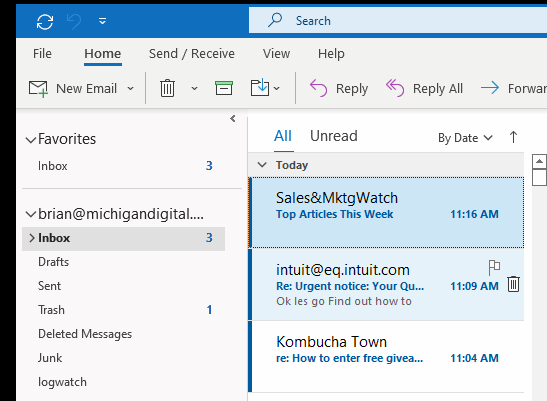
Choose the "File" menu in the upper left-hand corner. (next to "Home")
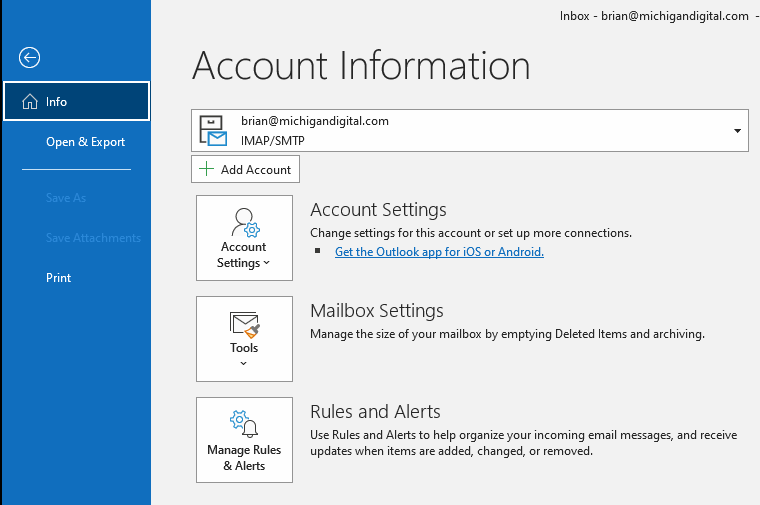
It will bring you to a page like this:
Click the "Add Account" button.
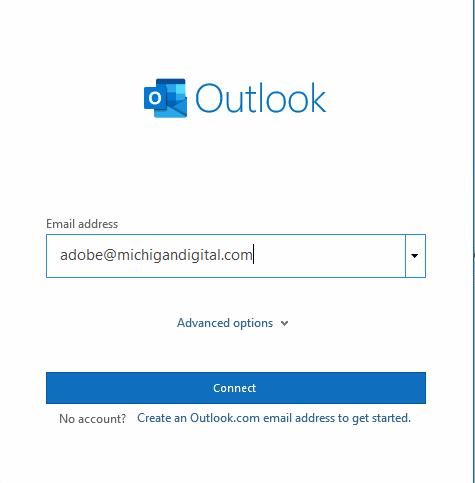
You will come to this screen:
Put your email address in and hit Connect.
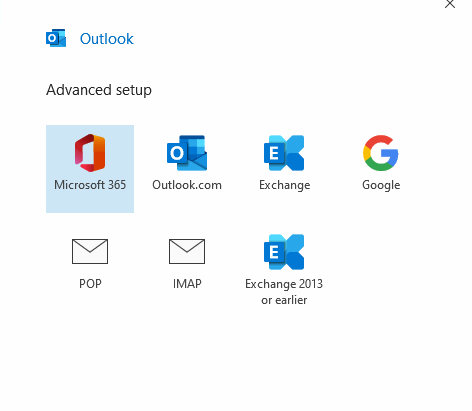
Choose IMAP here
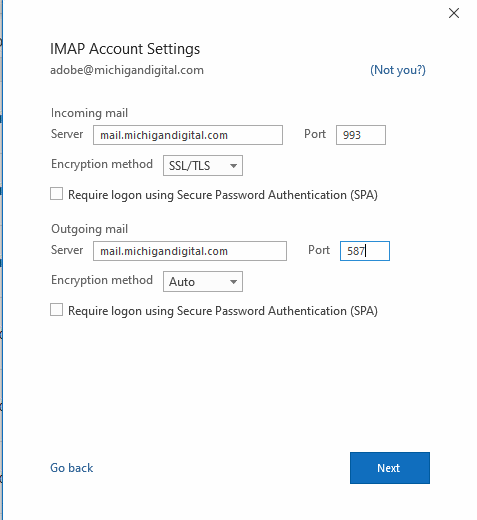
These are the settings you need to add
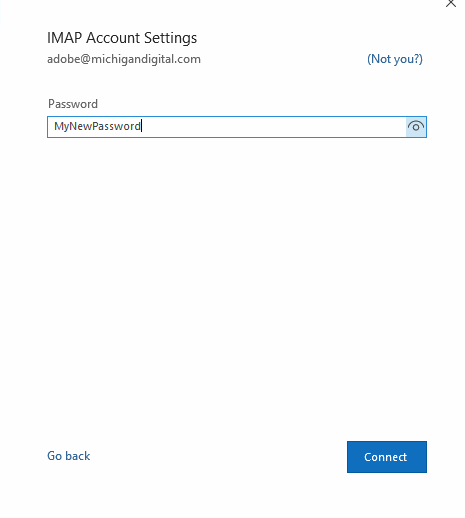
After that page, you'll need to enter your password:
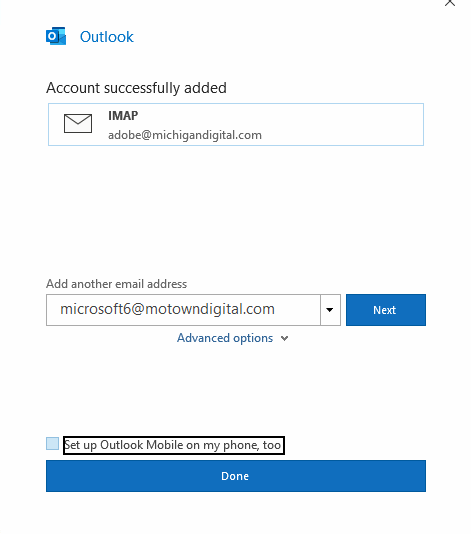
Then just hit "Done"!
Something didn't go right? Hit Brian G. up on Slack, or email me at brian@michigandigital.com